Register business trip
On this page you will find instructions on how to register your completed business trip.
In Primula under the heading Travel/Expenses, you register your completed business trip. Choose the form based on whether the business trip has been domestic (-MIUN Travel domestic) or international (-MIUN Travel abroad). Use the instructions below if you need more information about registering the different parts of the forms. Travel matters must be registered as soon as possible after the trip has been completed, but no later than 1 year from the time of travel.
Travel Advances
If the trip and its expenses are to be offset against an already granted travel advance, remember to tick this option.
Purpose
State the purpose of the trip and attach the agenda/conference program or equivalent document that proves that the trip is a business trip. Make sure that the date of the trip is stated in the documentation.
Travel times
Enter the travel times as below to calculate the allowance correctly.
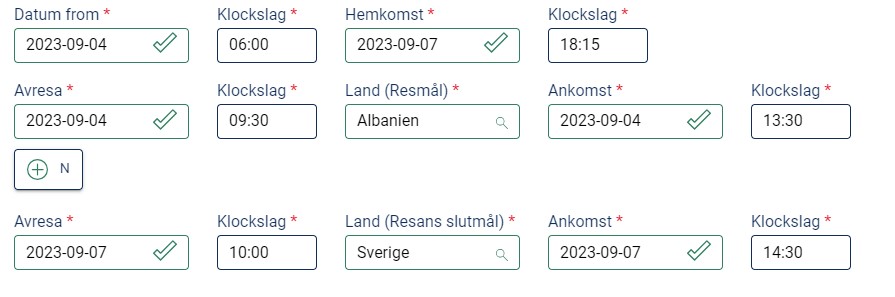
Line 1: On the first line, the trip is noted in its entirety with the departure date and time, as well as the date and time of return when you have left your home/office and returned to your home/office.
Line 2: On the second line, note the departure date and time when you leave Sweden. Country (Destination) is the country of arrival you are travelling to. Please note the arrival date and time when you arrive at your destination. You do not need to register any stopovers.
Line 3: The third line notes the departure date and time when you leave your destination. Country (the final destination of the trip) is usually Sweden. Please note the arrival date and time when you arrive in Sweden. You do not need to register any stopovers.
Example of registration of times for business travel
The example trip is to Albania during the period 4-7 September.
The journey in its entirety starts when the employee leaves home at 06:00 on September 4 and ends when the employee returns to home at 18:15 on September 7.
The employee will leave Sweden when the flight departs from Arlanda at 09:30 on 4 September and arrives in Albania at 13:30 on 4 September.
The employee will leave Albania as the flight departs at 10:00 on 7 September and arrives at Arlanda at 14:30 on 7 September.
Night allowance
A nightly allowance is paid when your employer does not have any actual accommodation costs for you (usually in the form of a hotel bill). A night allowance may therefore be relevant, for example, if you are staying overnight with a relative or friend.
Tick the nights where the above applies.
Meals
If you have paid for all your meals during the trip yourself, you must mark Yes next to "I have paid for all meals". If you have been invited to meals, you register this in the boxes under Meals.
Free meal
Free meal means that the allowance is reduced for the meal you have been offered.
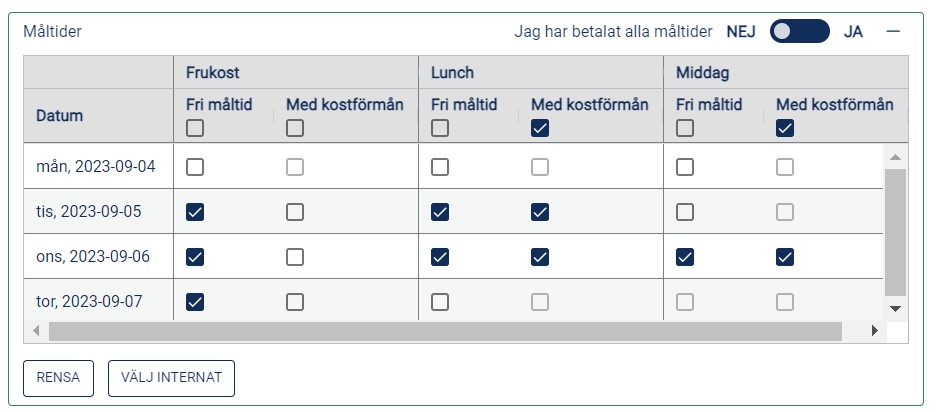
Tick only "Free meal" at the following times:
- When breakfast is obligatory, the accommodation price is included.
- For meals relating to external or internal representation. Read more about Mid Sweden University's rules of representation
With food benefit
Free meals that you have been offered by your employer or someone else will also be taxed on benefits. Check the boxes for both "Free meal" and "With food benefit" at the following times:
- For all meals you have been invited to that are not representation. Such as lunch/dinner that is included during a conference, training or in connection with work meetings.
- For breakfast that has been optional in addition to the accommodation price.
Leave the boxes blank for the below meals:
- When a meal is obligatory, the price of public transport is included.
- For meals you have paid for yourself.
Examples of registration of meals where breakfast is mandatory in the hotel price and lunch and dinner have been included in the conference
Coding
Coding is mandatory to register for the trip. You can find the coding in the account plan for your department/division. If you have questions about the accounting, please contact your manager/head of department or your department economist.
Mid Sweden University's chart of accounts
Interruption of travel
Under the tab Interruption of travel, you state the reason for the interruption you have had during your business trip. The interruption may be that you leave a few days earlier than, for example, a conference starts, or that you stay a few days after a conference has ended, for example.
Also remember to register the absence/reason for interruption (holiday, illness and leave of absence) as separate leave matters in Primula.
The interruption must not be a day of departure/return.
Set 6:00 AM to 11:59 PM as the time for a full day's outage.
Expenses abroad
In the Foreign expenses tab, you register the expenses in foreign currency that you have had during your business trip and for which you want to receive compensation. If you have had expenses that have been paid in Swedish kronor, you register these under the tab Expenses Domestic.
- Click on new row, select the type of expense from the list. Each receipt must have its own line.
- Enter the currency code.
- Enter the exchange rate as of the day the expense was made.
- You can find the exchange rate by clicking on the currency converter, fill in the currency code and select the date the expense was made.
- If you have paid expenses with credit or debit card, you need to attach documentation for the expense that shows the exchange rate that your card company has applied.
- Enter the amount stated on the receipt.
- If the expense is to be posted in a different way than the rest of the trip, click on the button deviating coding and enter the coding that applies to the expense.
Remember to attach documentation for the receipt.
Domestic expenses
In the Domestic Expenses tab, you register expenses made in Swedish kronor that you have incurred for your business trip and for which you want to receive compensation. If you have had expenses that have been paid in another currency, you register these under the tab Expenses International.
- Click on new row, select the type of expense from the list. Each receipt must have its own line.
- Enter the total amount stated on the receipt and the VAT.
- If the expense is to be posted in a different way than the rest of the trip, click on the button deviating coding and enter the coding that applies to the expense.
Remember to attach documentation for the receipt.
Representation
If you have represented during your business trip, you must indicate this under this tab.
- Select New Row.
- Select the type of representation from the list.
- Enter the Number of people and their names and company/organization - or click in the box for Attachment attached if you instead attach a list of the participants' names and companies.
- Enter the Currency Code, Exchange Rate, and Amount.
- State the purpose of the representation.
If the representation is to be posted in a different way than the rest of the trip, click on the button deviating coding and enter the coding that applies to the representation.
Mid Sweden University's rules of representation
Car compensation
In this tab, you can indicate whether you have travelled with your own car.
- Select cars tax-free low/normal (km) from the list. With this choice, you will be paid the tax-free compensation.
- Car consent can only be given for travel within Sweden. If you have a car mandate from your manager that makes you eligible for the taxable allowance as well, tick the box for Car mandate exists.
- Enter the Route, your return trip, and enter the total distance under Number of kilometers.
Finish
When you have completed your case, you can click on Calculate under the tab Calculate to get a preliminary information about the payment for the travel claim.
You can also click on the Print button to view a summary of the entire travel expense claim including the coding for the entire case.
If your travel expense claim is to be approved by another manager, you can choose to forward the case to that manager. Select which organization this manager belongs to by clicking Select other organization.
Under this tab, you can also provide additional information about the travel case itself. Then select Add message.
Also check that all appendices/documentation are included in the case.
To send the travel case further in the feed, click Send case.
Attachments
A supporting document, such as an agenda/conference programme or equivalent document, proving that the trip is a business trip must usually be attached to the case. Make sure that the date of the trip is stated in the documentation.
If the trip has taken place between our campuses, no agenda/conference program is usually needed.
If you have had expenses during the trip, a receipt must be attached to your case, regardless of whether it is a physical or digital receipt, as reviewers and approvers must be able to take part of them to see what the expense refers to.
- Start by saving your receipt on your computer. A physical receipt must first be scanned and a digital receipt must be saved in its original format.
- Attach the scanned/digital receipt to the case by either dragging the file to the attachment area or pressing browse to open the file explorer and click on the file you want to add. Remember to save the case.
- A digital receipt is attached in its original format to the case.
- A physical original receipt is scanned and attached to the case. It is important that the scanned receipt can be opened and read. Original physical receipts do not need to be sent to the HR department for archiving anymore. Keep the physical paper receipt until you have received your compensation, after which the receipt can be thrown away.
Travel Advances
If the trip and its expenses are to be offset against an already granted travel advance, remember to tick this option.
Travel times
The trip is noted in its entirety with the departure date and time as well as the date and time of return when you have left your home/office and returned to your home/office.
Night allowance
A nightly allowance is paid when your employer does not have any actual accommodation costs for you (usually in the form of a hotel bill). A night allowance may therefore be relevant, for example, if you are staying overnight with a relative or friend.
Tick the nights where the above applies.
Purpose
State the purpose of the trip and attach the agenda/conference program or equivalent document that proves that the trip is a business trip. Make sure that the date of the trip is stated in the documentation.
If the journey has taken place between our campuses, no documentation is usually needed.
Coding
Coding is mandatory to register for the trip. You can find the coding in the account plan for your department/division. If you have questions about the accounting, please contact your manager/head of department or your department economist.
Mid Sweden University's chart of accounts
Meals
Tick "Free meal" at the following times:
- When breakfast is obligatory, the accommodation price is included.
- For meals relating to external or internal representation. Read more about Mid Sweden University's rules of representation
Tick "Free meal" and "With food benefit" at the following times:
- For all the other meals you have been invited to. Such as a lunch/dinner that is included during a conference/training.
Leave blank:
- When a meal is obligatory, the price of public transport is included.
- For meals you have paid for yourself.
Examples of registration of meals where breakfast is mandatory included in the hotel price as well as lunch and dinner have been included in the conference.
Interruption of travel
In the tab Interruption of travel, you state the reason for the interruption you have had during your business trip. The interruption may be that you leave a few days earlier than, for example, a conference starts, or that you stay a few days after a conference has ended, for example.
Also remember to register the absence/reason for interruption (holiday, illness and leave of absence) as separate leave matters in Primula.
The interruption must not be a day of departure/return.
Set 6:00 AM to 11:59 PM as the time for a full day's outage.
Domestic expenses
In this tab, you register expenses made in Swedish kronor that you have incurred for your business trip. If you have an expense in a foreign currency that is linked to the business trip, this expense must be registered separately in a separate case in the form MIUN Expenses only/repre/cars.
- Click on new row, select the type of expense from the list. Each receipt must have its own line.
- Enter the total amount stated on the receipt and the VAT.
- If the expense is to be posted in a different way than the rest of the trip, click on the button deviating coding and enter the coding that applies to the expense.
Remember to attach documentation for the receipt.
Representation
If you have represented during your business trip, you must indicate this under this tab.
- Select New Row.
- Select the type of representation from the list.
- Enter the amount.
Enter the Number of people and their names and company/organization - or click in the box for Attachment attached if you instead attach a list of the participants' names and companies. - State the purpose of the representation.
If the representation is to be posted in a different way than the rest of the trip, click on the button deviating coding and enter the coding that applies to the representation.
Mid Sweden University's rules of representation
Car compensation
In this tab, you can indicate whether you have travelled with your own car.
- Select cars tax-free low/normal (km) from the list. With this choice, you will be paid the tax-free compensation.
- If you have a car mandate from your manager that makes you eligible for the taxable allowance as well, tick the box for Car mandate exists.
- Enter the Route and the Number of kilometers.
Finish
When you have completed your case, you can click on Calculate under the tab Calculate to get a preliminary information about the payment for the travel claim.
If your travel expense claim is to be approved by another manager, you can choose to forward the case to that manager. Select which organization this manager belongs to by clicking Select other organization.
Under this tab, you can also provide additional information about the travel case itself. Then select Add message.
Also check that all appendices/documentation are included in the case.
To send the travel case further in the feed, click Send case.
Attachments
Documentation such as an agenda/conference program or equivalent document proving that the trip is a business trip must usually be attached to the case. Make sure that the date of the trip is stated in the documentation.
If the journey has taken place between our campuses, no documentation is usually needed.
If you have incurred expenses during the trip, a receipt must be attached to your case in Primula, regardless of whether it is a physical or digital receipt, as the examiner and approver must be able to access them to see what the expense refers to.
- Start by saving your receipt on your computer. A physical receipt is first scanned and a digital receipt must be saved in the original digital format.
- Then attach the receipt to the case by either dragging the file to the attachments area or pressing browse to open the file explorer and click on the file you want to add. Remember to save the case.
- A digital receipt only needs to be attached in the original digital format to the case in Primula.
- A physical receipt needs to be sent to the HR department. Before you forward the case in Primula, print out the expense appendix by clicking on Print/Expense appendix. Attach the receipt to the expense appendix and send it to the HR administrator by internal mail.